
Help & guide
Start with step 1 — add the app to your home screen, then sign in from that icon.
First: add the app to your home screen
Add the icon before you sign in, then open the app from that icon from then on.
Important: install the icon first and sign in from the icon. If you sign in through the browser and add the icon afterward, the phone treats them as two separate sites and will ask you to sign in every time you open the app.
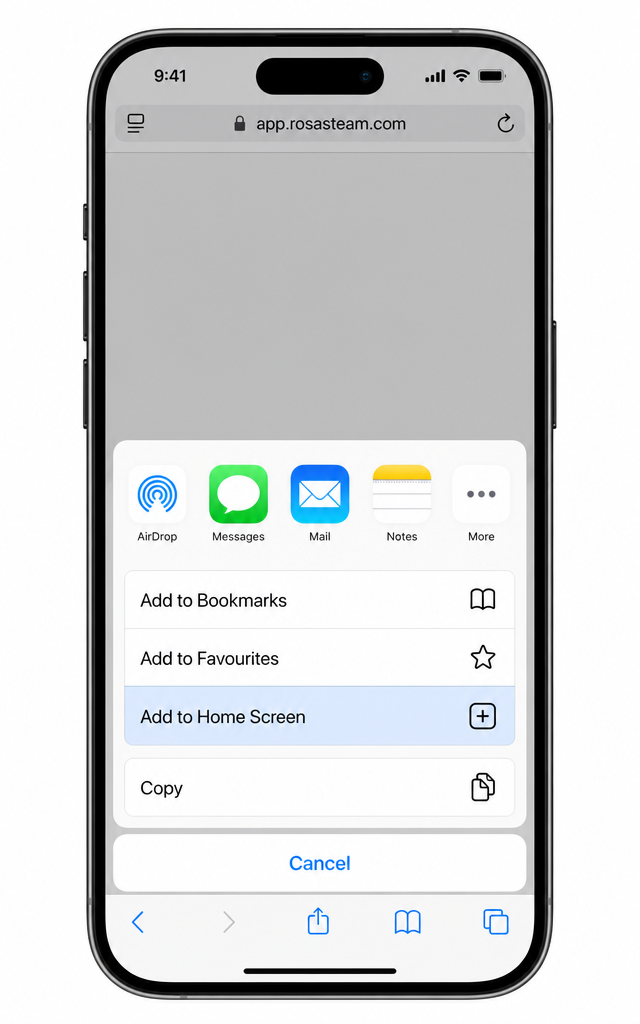
iPhone
- Open Safari and go to app.rosasteam.com.
- Tap Share (the square with an arrow).
- Tap View More.
- Tap Add to Home Screen, then tap Add.
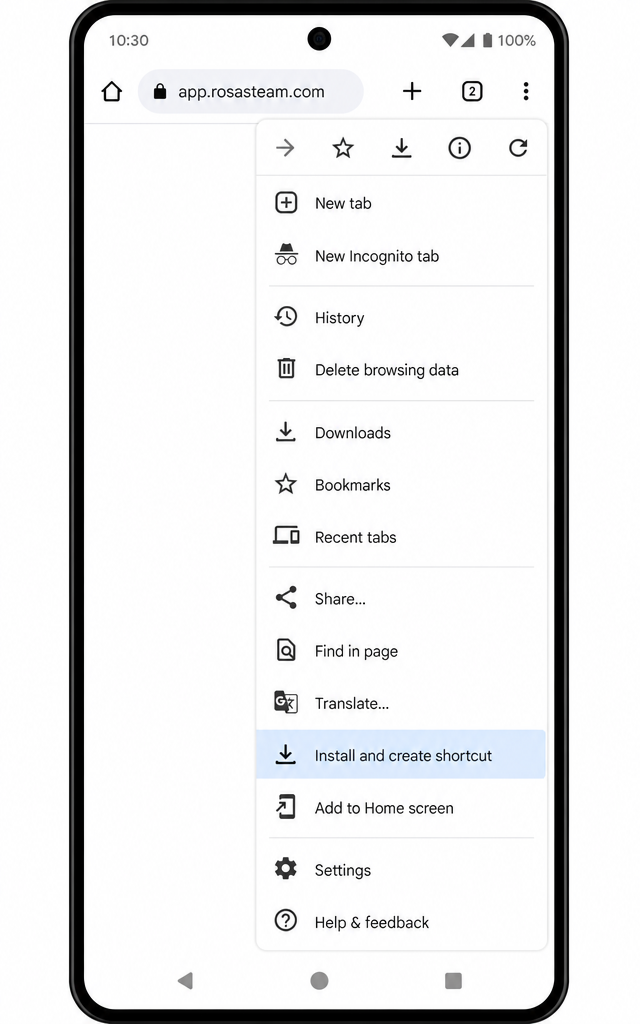
Android
- Open Chrome and go to app.rosasteam.com.
- Tap the three dots in the top right.
- Tap Install and create shortcut.
Then: open the app and sign in
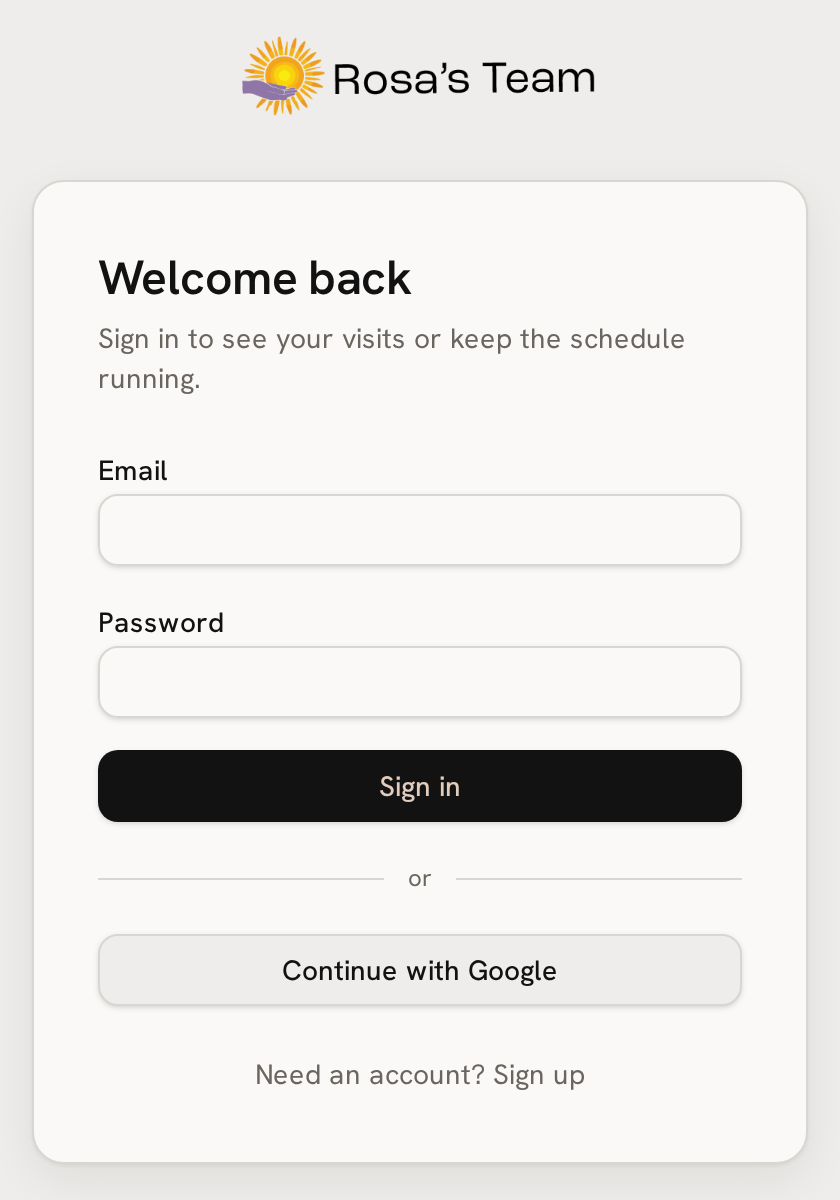
You can sign in two ways from the sign-in page:
- Continue with Google — fastest. Use the Google account that matches the email the office has on file for you.
- Email and password — choose “Need an account? Sign up”, enter your full name, email and a password of at least 6 characters.
Your email must already be on file. Access is allow-list gated: the office has to have created a Caregiver record with your exact email address before the app can connect your login to your shifts. If you sign in and see the message “We haven’t matched you up yet”, or nothing appears under My shifts, that is not something you did wrong — contact the office (Rosa, Angelo or Jaime) and ask them to add or correct your email under Caregivers.
Email verification. If you sign up with email and password, you may be asked to confirm your email before you can sign in. You’ll see “Account created. Check your email to confirm, then sign in.” Open the email from us and tap the confirmation link, then come back and sign in. If it doesn’t arrive within a few minutes: check your spam or junk folder, confirm you typed the address correctly, then contact the office (Rosa, Angelo or Jaime). Using “Continue with Google” avoids this step entirely.
Still stuck? Contact the office — Rosa, Angelo or Jaime — and we’ll sort it out with you.